
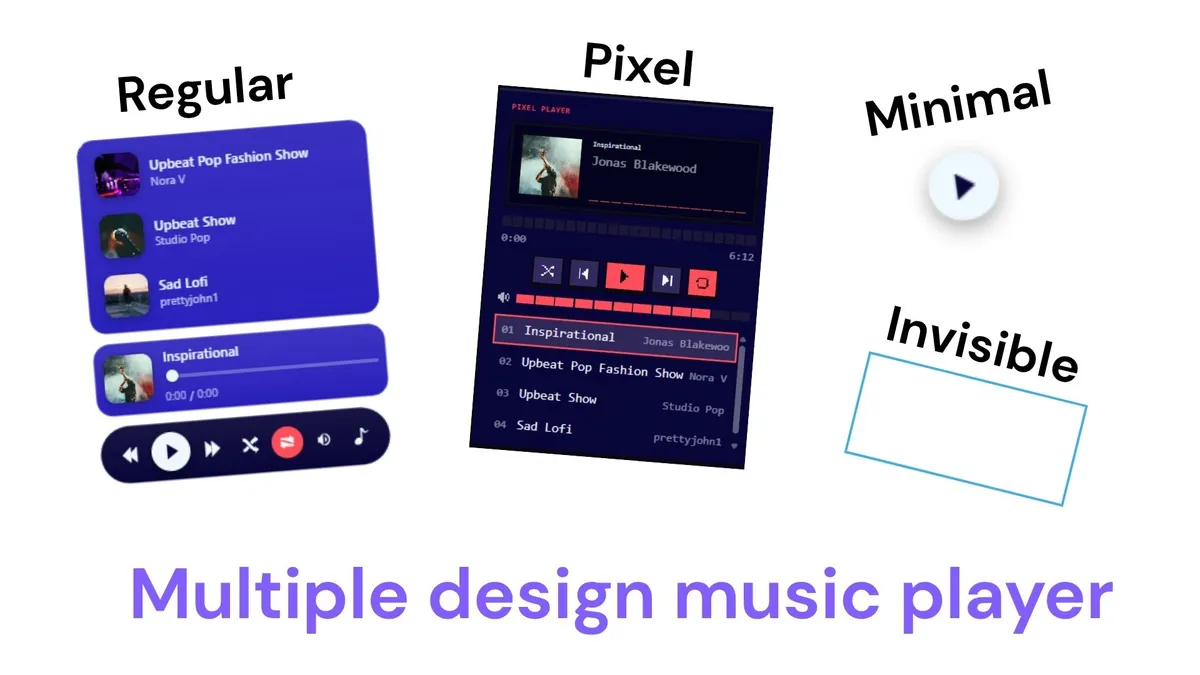
Press play on the preview above: that is the Regular style, playing real audio. The same player has four styles, picked from one setting. Regular and Pixel are full players with a track list, shuffle, repeat, and volume. Minimal is one round play button. Invisible is a transparent button with nothing drawn on it: design the button in Canva (a record, a cassette, a photo), put the invisible player on top, and a press on your design starts the music.
Two things about Canva decide how the player works there. A Canva website shows embeds that sit in the page, never ones that float over it, so a music bar pinned to the bottom of the screen, a floating music button, or a popup player will not work on a Canva site, whoever makes it. The player sits in a box on the page, where you put it. And the music starts with a press: browsers block sound until a visitor clicks or taps something, so plan for one press rather than music on arrival.
The songs are audio files you upload to Fugte, or direct links to audio files you host elsewhere. Canva cannot host an audio file for your website, so one of those two is where they live. Change a song or the order in Fugte and publish, and within about a minute the published Canva site plays the new list. The link in Canva stays the same, so nothing there is touched again.
Why Fugte
What Canva plays on its own, and what this adds.
Canva audio is for videos and slides
Canva's audio library adds music to videos, presentations, and social posts. It does not play on a published website, so a song added there stays silent on your Canva site. Sound on a Canva website comes through an Embed element.
Spotify and SoundCloud bring their own player
Canva's Embed takes Spotify and SoundCloud links. Each shows its own player in its own design, the song has to be on that service first, and Spotify plays a 30-second preview to visitors who are not signed in to Spotify.
Your own songs, in your own design
This player plays files you upload, in your colors, as a full player, one button, or an invisible layer over artwork you made in Canva. Swap the songs later in Fugte and the Canva site picks them up without being published again.
Step by step
Embed the Music Player in your Canva website.
Steps checked in Canva and Fugte on .
- 01
Pick the spot on your Canva page
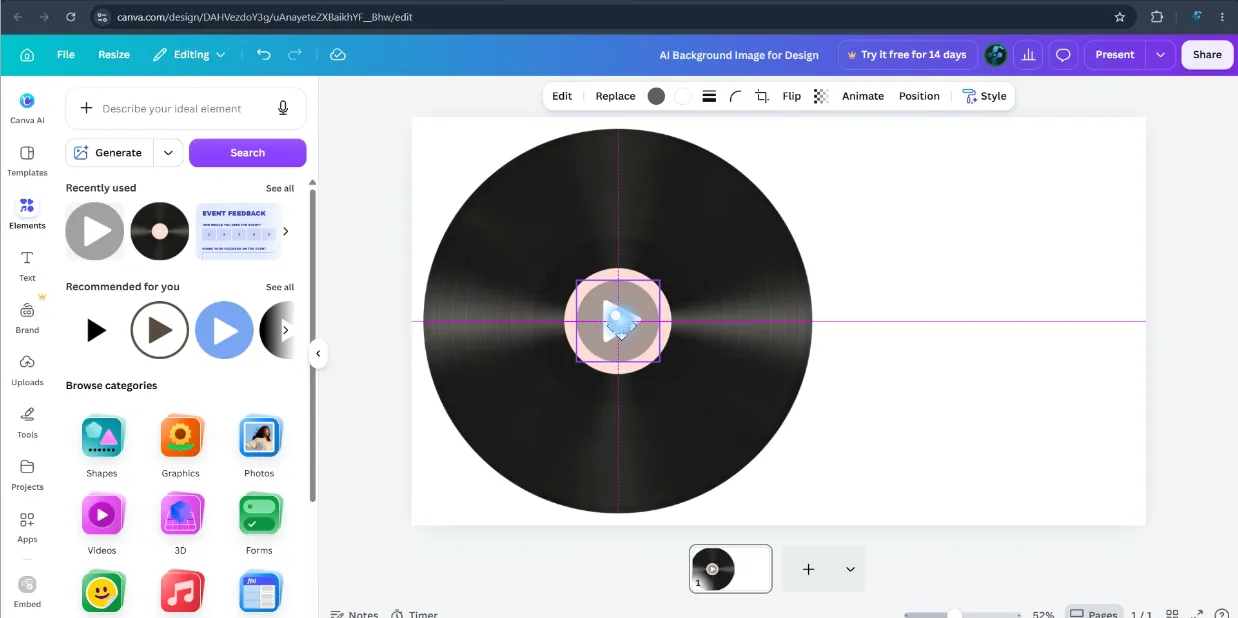
Leave room in your Canva website design where the player will sit. To have visitors press your own artwork instead (a record, a cassette, a photo, or a play icon from Elements), design it now. The invisible player goes on top of it later.
- 02
Open the Music Player starter in Fugte
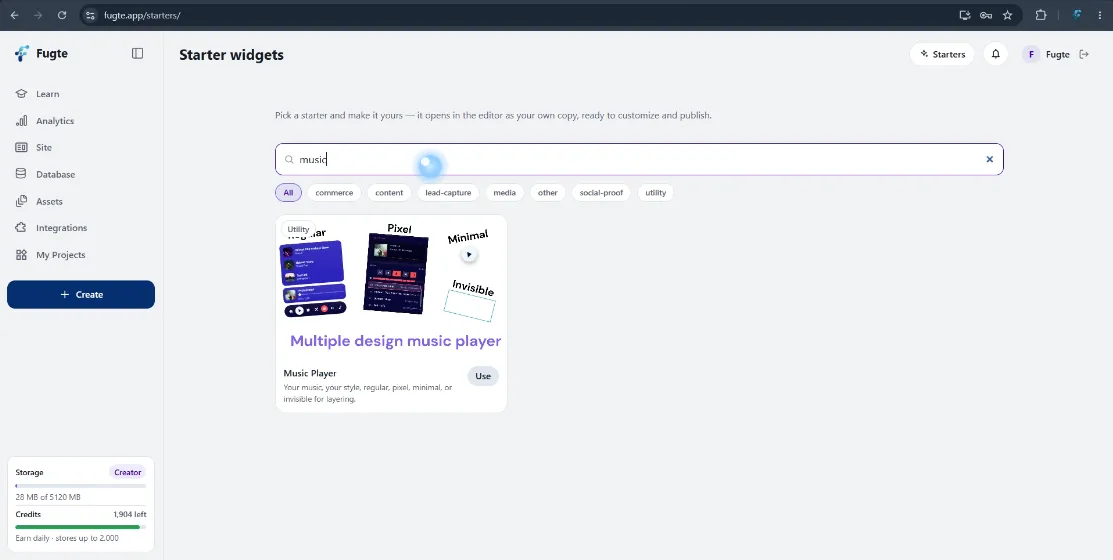
In Fugte, open Starters, search for music, and choose Use on the Music Player. It opens in the editor as your own copy.
- 03
Choose a player style
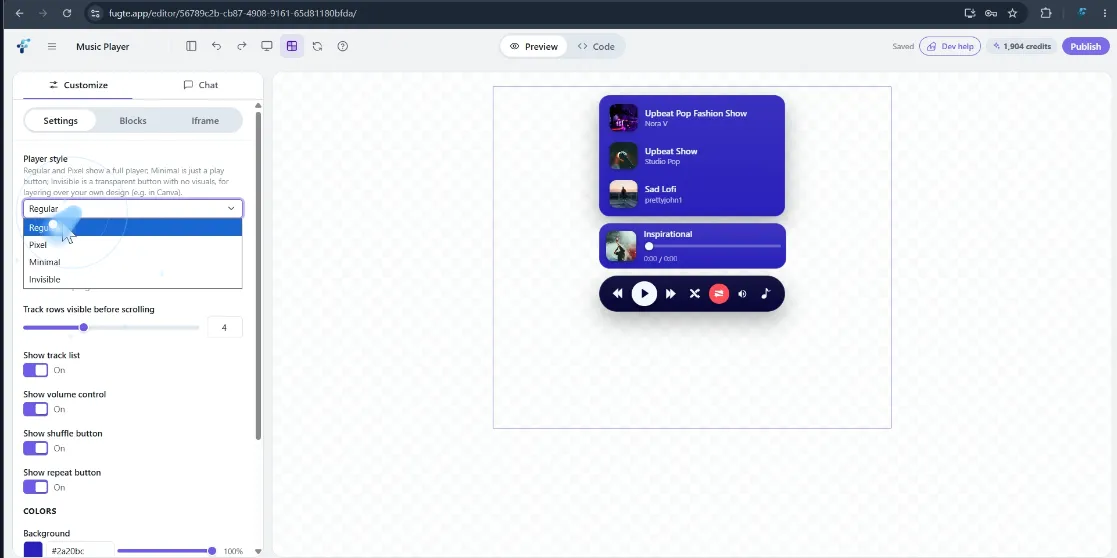
On the Settings tab, pick a Player style: Regular or Pixel for a full player, Minimal for one round button, or Invisible to make your own artwork the button. With Invisible the preview goes blank, and that is correct: the player is now a transparent button.
- 04
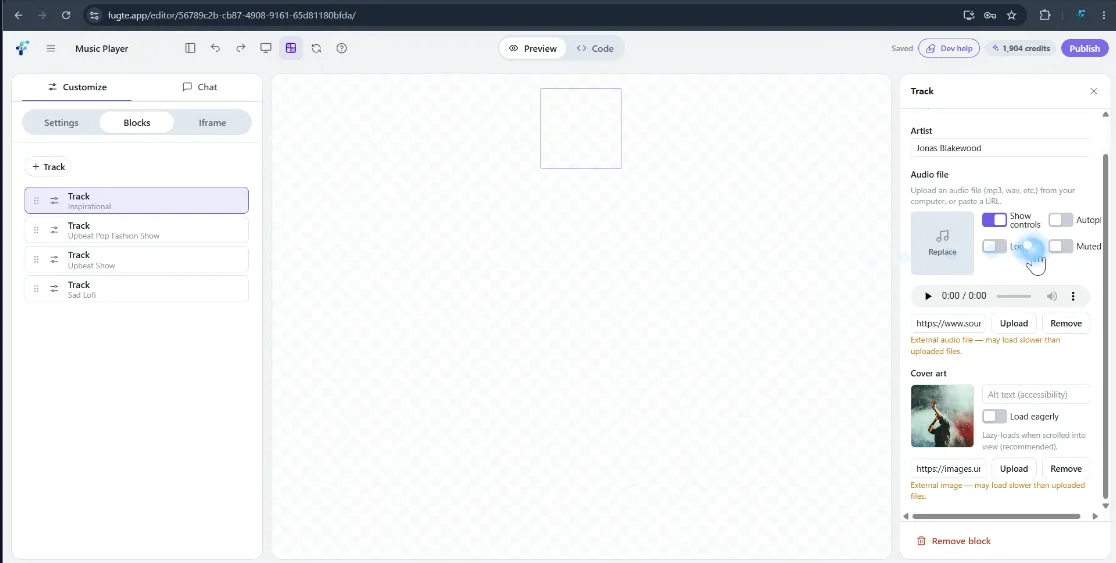
Add your songs
On the Blocks tab, open each track, give it a title, artist, and cover art, and upload an audio file or paste a direct link to one. MP3 plays in every current browser. Remove the sample tracks you do not want. One press plays the tracks in order, and the list starts over after the last.
- 05
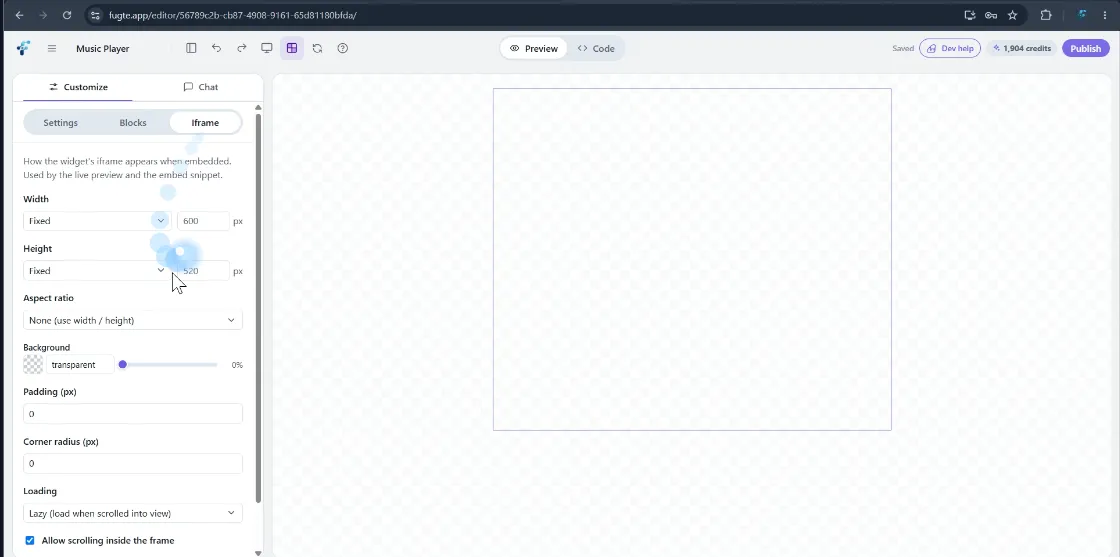
Size the frame
On the Iframe tab, set Width and Height to Fixed. For a full player, keep the frame tall enough for the controls along the bottom, because a frame that is too short cuts those off first. For Invisible, use your button's proportions: equal numbers for a round or square one. Canva shapes the embed box from these two numbers.
- 06
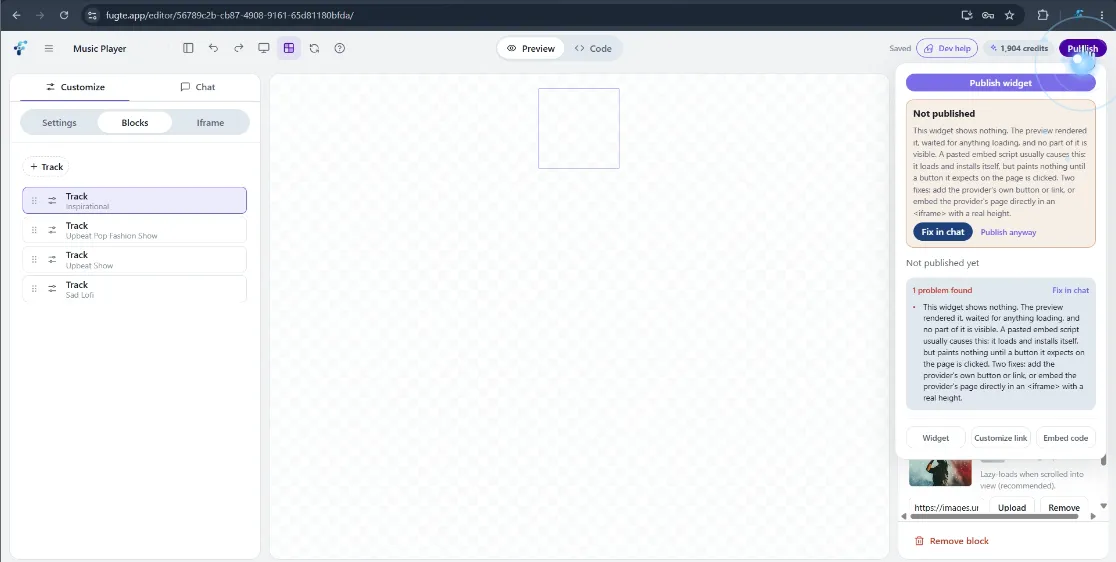
Publish the widget
Choose Publish. With Invisible, the check before publishing warns that the widget shows nothing, because an invisible player draws nothing on purpose: choose Publish anyway.
- 07
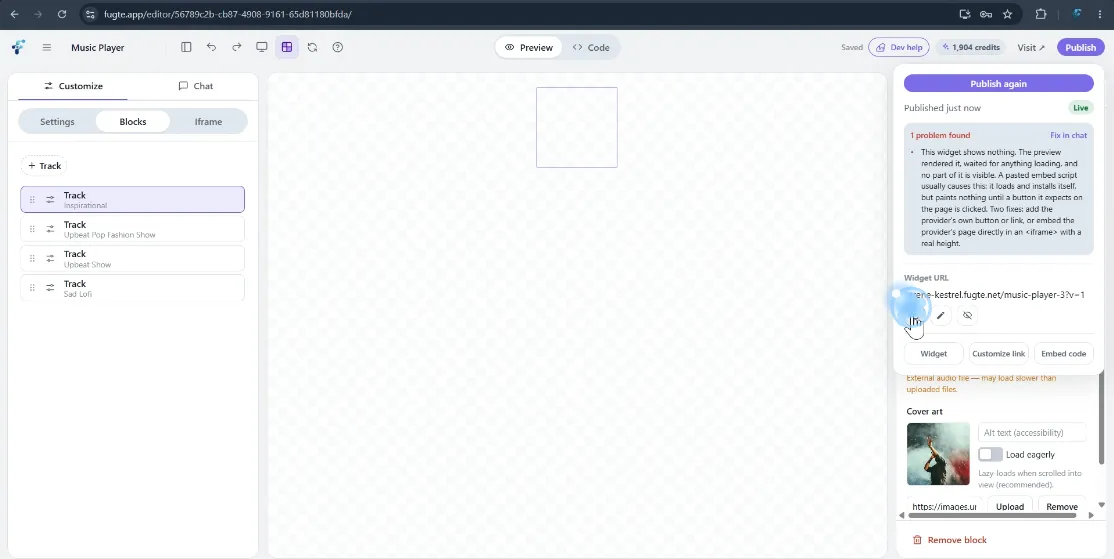
Copy the widget link
Once it is live, copy the Widget URL from the same panel. Canva takes this link. It does not accept HTML embed code on any plan.
- 08
Paste the link into a Canva Embed
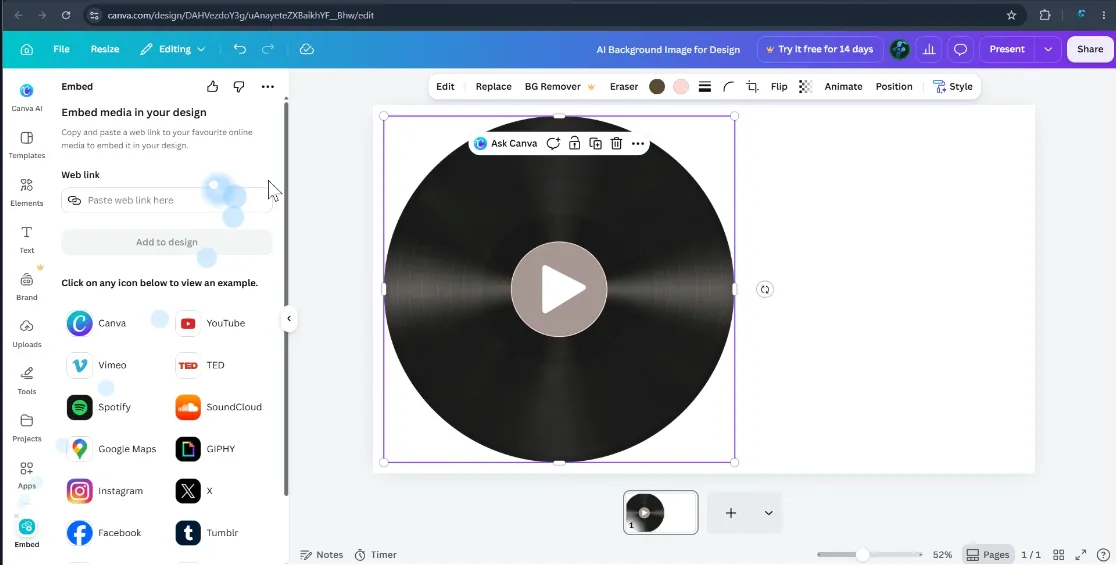
In your Canva website design, open Apps, search for Embed, and open it (it may already be in your side panel). Paste the link into Web link and choose Add to design.
- 09
Size and place the embed
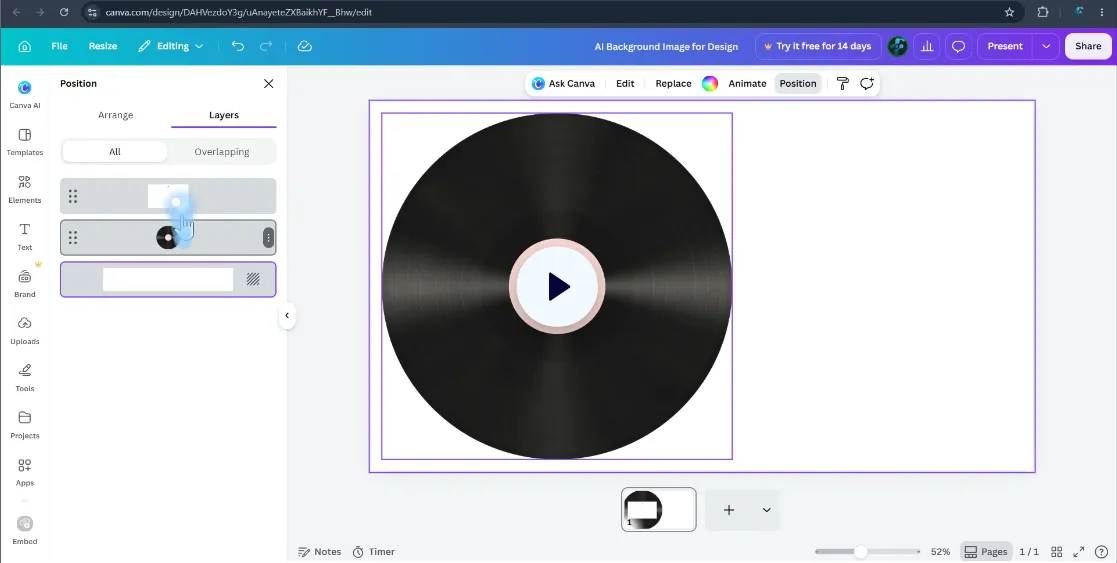
Drag the embed box into place. For a full player, make it large enough that nothing is cut off. For Invisible, drag it over your button and resize it to cover the button, then open Position, choose Layers, and drag the embed to the top of the list, so a press lands on the player rather than on the artwork under it.
- 10
Preview, publish, and test
Check the layout with Preview, then publish the website in Canva. Open the published site on a computer and on a phone and press play. The first press starts the music and the next one pauses it.
- 11
Change the songs later
When a new song or episode is ready, add it as a track in Fugte, drag it to its place in the list, and publish. Refresh the published Canva site, and within about a minute the new list is there. The embed in Canva was never touched.
Good to know
Canva specifics worth planning around.
Canva renders only static, in-page embeds: floating buttons, sticky bars, and popups will not work on Canva sites.
There is no site-wide option: a widget you want on several pages must be embedded on each page individually.
The Embed element is available on free Canva accounts.
The link stays stable, so later edits made in the widget editor appear on the Canva page automatically, no need to reopen the design.
Why Canva takes a link and not code, and what to do when an embed is blank or cut off: How to Add HTML to Canva.
Ideas
Where the Music Player fits.
Artist pages
Your music, your style, regular, pixel, minimal, or invisible for layering.
Event pages
Your music, your style, regular, pixel, minimal, or invisible for layering.
Store ambiance
Your music, your style, regular, pixel, minimal, or invisible for layering.
FAQ
Common questions.
Can I add music to a Canva website?
Yes, with an embedded player. Canva's audio library is for videos, presentations, and social posts, and it does not play on a published website. A Canva site plays sound through its Embed element: a Spotify or SoundCloud link in their own players, or a hosted player like this one with your own audio files.
Can the player stick to the bottom of the screen on a Canva site?
No. Canva websites show embeds that sit in the page, not ones that float over it, so a sticky music bar, a floating music button, or a popup player cannot work there, from Fugte or anyone else. Put the player in a box where visitors will see it, or use the invisible style over a button you designed.
Can the music start on its own when the page opens?
Do not plan on it. Browsers block sound on a page until the visitor clicks or taps something, and an embed cannot get around that. Give visitors something to press, which is what the invisible style is for: the press lands on artwork you designed.
Where do my audio files need to be?
Canva cannot host an audio file for a website, so upload it to Fugte or link to it somewhere else. Uploads count toward your plan's storage: 100 MB on free, 500 MB on Basic, and 5 GB on Creator, and a three-minute MP3 is usually 3 to 7 MB. A link has to point at the audio file itself. A SoundCloud or YouTube page is not one, and this player cannot play it; paste that link into Canva's Embed instead and accept their player.
Can I play more than one song?
Yes. Each track is a block with its own title, artist, audio file, and cover art. Regular and Pixel show the list, with shuffle, repeat, and skip. Minimal and Invisible show one button, and the tracks play in order behind it.
How do I make an invisible play button in Canva?
Design the button in Canva. In Fugte, set this player's style to Invisible, publish it, and paste its link into a Canva Embed. Place the embed over your button and move it to the top under Position, Layers. Visitors see your design, and pressing it plays the music.
Does it work on a phone?
Yes. Under 500 pixels wide, the controls bar stretches to the full width of the frame. On an iPhone or iPad the volume slider does nothing, because iOS leaves volume to the device's own buttons, so consider switching off Show volume control. Test the published Canva site on a phone too, since that is where a layout built on a laptop is most likely to shift.
Why does nothing play when I press my button?
Usually the embed is under the artwork. Open Position, choose Layers, and move the embed to the top. Then check that the embed covers the whole button, that every track has an audio file, and that you are testing the published Canva site, which is what visitors open.
Can I change the songs after the Canva site is live?
Yes. Change the tracks in Fugte and publish, and within about a minute the Canva site plays the new list. Nothing is re-pasted or published again in Canva, because the link stays the same.
Does the Fugte badge show on an invisible player?
It can. On the free plan a small Fugte badge sits in one corner of the widget, and it shows over your design even when the player is invisible, unless the frame is under 320 pixels wide or 140 tall. Paid plans remove it, and a one-time payment removes it from a single widget.
What music can I use?
Music you own, or have a licence to play on a public website. Canva's popular-music catalog will not cover it: Canva limits those songs to personal, non-commercial use and clips of up to 60 seconds. The audio file is served to anyone who opens your page.
Can I paste HTML or iframe code into Canva instead?
No. Canva websites do not support raw HTML, JavaScript, or iframe embeds on any plan. Hosting the widget elsewhere and embedding it by link is the supported route.
Will the Music Player stay interactive after the Canva site is published?
Yes. The Music Player loads live on the published site, on desktop and mobile, and visitors can interact with it without any account.
Does this need a paid Canva plan?
No. Canva's Embed element works on free accounts, and Fugte has a free plan, so you can test the full workflow at no cost.
More guides
Same widget, other platforms.
Add a Music Player to a Notion page
Add a Music Player to any Notion page or Notion Site with the /embed block. Hosted, interactive, works on free Notion plans, no code.
Add a Music Player to a Shopify store
Add a Music Player to your Shopify store without installing an app or editing theme code: paste one hosted embed into a Custom Liquid section or page.
Add a Music Player to a WordPress site
Add a Music Player to WordPress with a Custom HTML block, no plugin required. Works with the block editor, classic editor, and page builders like Elementor.
Add a Music Player to a Webflow site
Add a Music Player to a Webflow site with the Embed element: one hosted snippet, editable later without republishing the site.
Related widgets
More utility widgets for Canva.
Add a Custom Iframe Embed to a Canva website
Showcase your iframes!
Add a Message in the Bottle to a Canva website
A calming interactive gratitude bottle where visitors can write small notes, drop them into the bottle, and reopen them
Add a Seating Chart to a Canva website
Guests type their name on your wedding or event website and see their table and seat.
Try it
Put a Music Player on your Canva website today.
Start free, customize the Music Player without code, and embed it with one link. Free widgets show a small Fugte badge, which you can remove from this one for $9.99 once when you publish, with no subscription.