
How to Add HTML to Canva
The short answer: Canva does not accept raw HTML, <script> tags, or iframe code on any plan. On a Canva website, add an Embed element and paste a link to a hosted page instead. For HTML you already have, that means putting it at an address first.
The rest of this guide covers how to get that address, the exact clicks in Canva, what will not work there and why, and what to do when the embed shows up blank or cut off.
Which Canva are you in?
The answer changes with what you are making, and following the wrong branch is the most common reason these steps fail.
- A Canva website. This is what the rest of the guide covers. The Embed element puts a hosted page inside your layout, and it runs for visitors on the published site.
- A design you download, such as a PNG, a PDF, a printed flyer, or a video. A downloaded design is a finished file, so nothing in it can run. Put a link or a QR code on it that opens the hosted page instead.
- A presentation or a Doc you share from Canva. Canva’s Embed app is there too and takes the same kind of link. Check the embed in the view your audience will use before you rely on it.
Step 1: Turn the HTML into a link
Canva needs an address, not code. There are two ways to get one with Fugte:
- You already have the HTML, from a tutorial, ChatGPT, or a developer. Paste it into HTML to link. It previews the code and publishes it to a hosted address with no account. The page lasts seven days; claim it with a free account within the week and it stays up at the same address, and you can change it from then on.
- You want something you can edit later without touching code. Start from a starter widget in Fugte, describe one to the built-in AI, or paste your code there. Its text, colors, and options become settings, and publishing gives you a link that never changes.
Step 2: Add the Embed element in Canva
- Open your Canva website design.
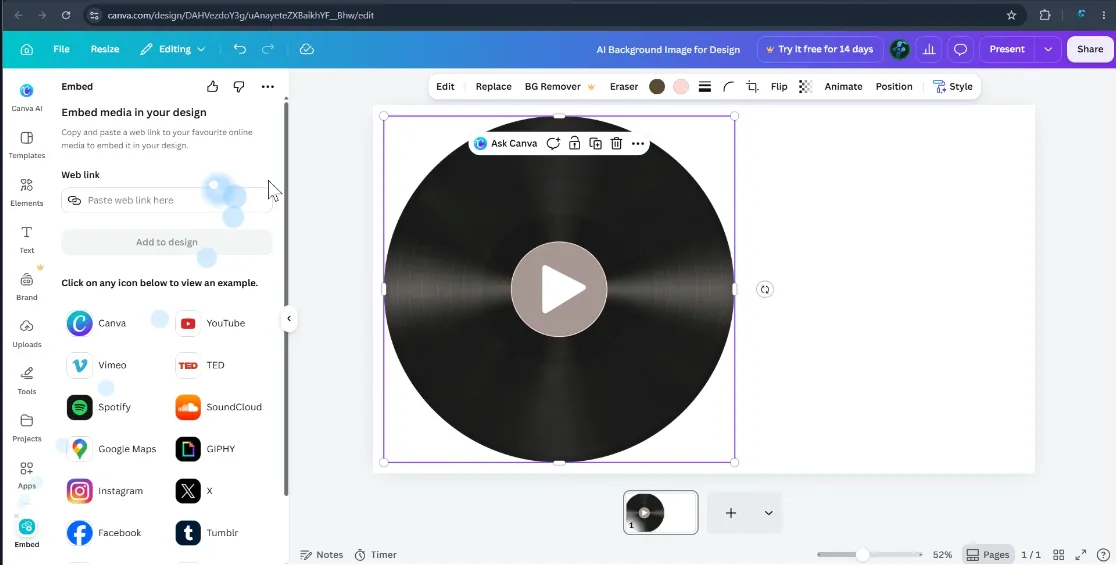
- Open Apps in the left sidebar, search for Embed, and open it.
- Paste the link into Web link and choose Add to design.
- Drag the box into place and resize it. Sizing is covered further down.
- Publish the site. An embed only reaches the published site once you publish again, so judge it on the published address, not in the editor.
What a working embed looks like
This is a countdown built in Fugte, running in a frame on this page. A Canva embed works the same way: a box in your layout with a hosted page running inside it.
What will not work on a Canva site, and why
Canva puts the linked page inside a frame: a window onto another address, set into your layout. Whatever runs in that window stays inside it. It cannot reach the rest of your Canva page, and your page cannot reach into it. That boundary is deliberate, because it is what stops embedded code from reading or changing the site around it.
The same boundary decides what fails:
- Floating buttons, sticky bars, and popups. They need to sit over the whole page, and an embed can only draw inside its own box.
- Scripts that install themselves into the page, such as chat bubbles and many “paste this snippet” widgets. They expect to add things to your page, and inside a frame there is no page for them to reach. They usually show up as an empty box.
- Site-wide placement. Canva has no “add to every page” option, so an embed you want on several pages goes on each one by hand.
What works is anything that lives in its own rectangle: forms, countdowns, calculators, galleries, quizzes, music players. If you wanted something floating, give the content a reserved block in the layout instead.
The part that bites later: pasted code is frozen
Code pasted into a page is a copy. When the date, the price, or the wording changes, every copy has to be found and replaced, on every page it was pasted into.
A hosted link works the other way. The page lives in one place, and every embed points at it. Change the widget in Fugte and publish, and within about a minute every Canva page carrying the link shows the new version, with nothing to re-paste and no reason to publish the Canva site again.
A countdown shows it best. The launch slips a week, so you open the countdown in Fugte, move the date, and publish. The Canva site you published last month now counts to the new date, and you never opened Canva. The countdown post walks through that case from start to finish.
Sizing it so nothing is cut off
- Shape. For a Fugte link, Canva takes the box’s proportions from the widget’s own, which you set on the editor’s Iframe tab. A fixed width and height there gives an exact shape.
- Content that grows. An accordion opening or a form showing its thank-you message needs room. Make the box as tall as the tallest state, not the first one.
- Phones. On a narrow screen the embed gets narrower, and content that fit on one line can wrap onto two. Open the published site on a phone before you share it.
When it does not show up
- Canva will not take what you pasted. It is code, not a link. Turn it into a link first (Step 1).
- A blank box. The page behind the link draws nothing until something it expects happens, usually a script waiting to install itself into a page, as described above. Fugte’s check before publishing flags a widget that shows nothing. Use the provider’s own link or page instead of its install script.
- Cut off, or scrolling inside the box. The box is shorter than the content. Make it taller in Canva, or set the frame’s height on the Iframe tab in Fugte.
- Fine in the Canva editor, missing on the live site. The site has not been published since you added the embed. Publish it, then reload the published address.
- Fine on a computer, broken on a phone. The narrower box wraps the content onto more lines than its height allows. Give it more height, and check on a phone again.
Start with what you have
If the HTML is already in your clipboard, paste it into HTML to link and it comes back as an address Canva accepts. If you would rather start from something built for Canva, browse the starter widgets, each with its own Canva guide, or read more about Fugte for Canva.
FAQ
Can I add raw HTML to Canva?
No. Canva websites do not accept raw HTML, CSS, or script tags on any plan. Host the HTML at an address, then paste that link into an Embed element.
Can I paste iframe embed code into Canva?
No. The Embed element asks for a web link, not code. If a tool gives you an iframe snippet, turn what it shows into a hosted page with its own address and paste that address instead.
Can I add JavaScript to a Canva website?
Not into the page itself. JavaScript can run inside a hosted page that you embed by link, and there it works within the embed's own box.
Does this work in Canva Docs and presentations?
Canva's Embed app is there too, and it takes the same kind of link. Check the embed in the view your audience will use before you rely on it. A downloaded design (a PDF, an image, a video) cannot run anything, so give it a link or a QR code instead.
Do I need a paid Canva plan?
No. The Embed element works on free Canva accounts, and Fugte has a free plan, so the whole route costs nothing to try.
Can I add a popup or a floating button to a Canva site?
No. An embed draws only inside its own box on the page, so popups, floating buttons, and sticky bars do not work on a Canva site, whoever made them. Give the content a reserved block in the layout instead.
Will an embed slow my Canva site down?
It loads in its own frame, separately from the rest of the page, so the page does not wait for it. A heavy page behind the link still takes its own time to appear inside the box.